

Submit Data
Submitting Data to SWIMS
All Water Action Volunteers data is entered into the Wisconsin Department of Natural Resources (DNR) Surface Water Integrated Monitoring System (SWIMS) database. The SWIMS database is used by DNR staff to enter and search for water quality monitoring information for assessing the health of our state’s waters and to guide water protection and restoration decision-making. The database is also linked directly to the DNR’s Surface Water Data Viewer online mapping tool.
Are you an active WAV volunteer? Click the button below to submit your stream data. *Please note: You will not be able to log in until WAV Program Staff create your SWIMS profile.
If you need any assistance with SWIMS, please contact WAV Program Staff directly at wav@extension.wisc.edu.
Getting access to SWIMS
Logging into the SWIMS database is easy, but it does involve a few steps to get an account. After attending a stream training, follow the steps below to get access to the SWIMS database to submit your stream data. Please carefully read through the instructions!
Instructions for new SWIMS users
Step 1 – Create a MyWisconsin ID
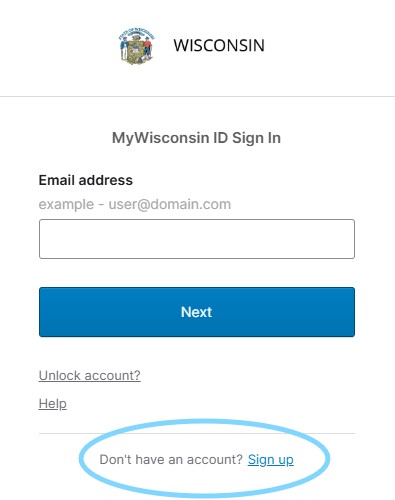
You will use the State of Wisconsin’s “MyWisconsin ID” system to log into the SWIMS database. Go to the link below and click “Sign up” (small blue link below the login, shown in image below) to create your account.
- You will be asked for your first name, last name, and email address. The email address you provide will be your username.
- On the next page, click Set up under Email. The system will then send you an email to confirm your email address.
- Open the email and click the “Activate MyWisconsin ID Account” button.
- Now it will ask you to create a password for your account. Enter that password and re-enter that password, and click Next.
- On the next screen, click Set up under the Phone option. This will ask for your phone number, and it will send you a text message code to enter into the box. You are welcome to select other multi-factor authentication methods, but we recommend the text option as the most user-friendly.
- Now click Continue near the bottom and your account is ready. You’ll be at a page with a gray screen and blue side bar. Just click on your name in the upper right corner of the screen and choose Sign Out.
- Congrats! Your MyWisconsin ID account has been created. You will NOT need to go through these steps again.
Step 2 – Email WAV Program Staff to create your SWIMS profile
Before you can log in to SWIMS, WAV staff need to manually create your profile in the database. Send an email to wav@extension.wisc.edu and provide:
- Your full name
- Your email address that you used to set up your MyWisconsin ID
- Your phone number
- The Station ID and Station Name you are monitoring. Work with your local WAV Coordinator and/or WAV Program staff to select your monitoring site.
- The name of the WAV Coordinator or organization you are monitoring with.
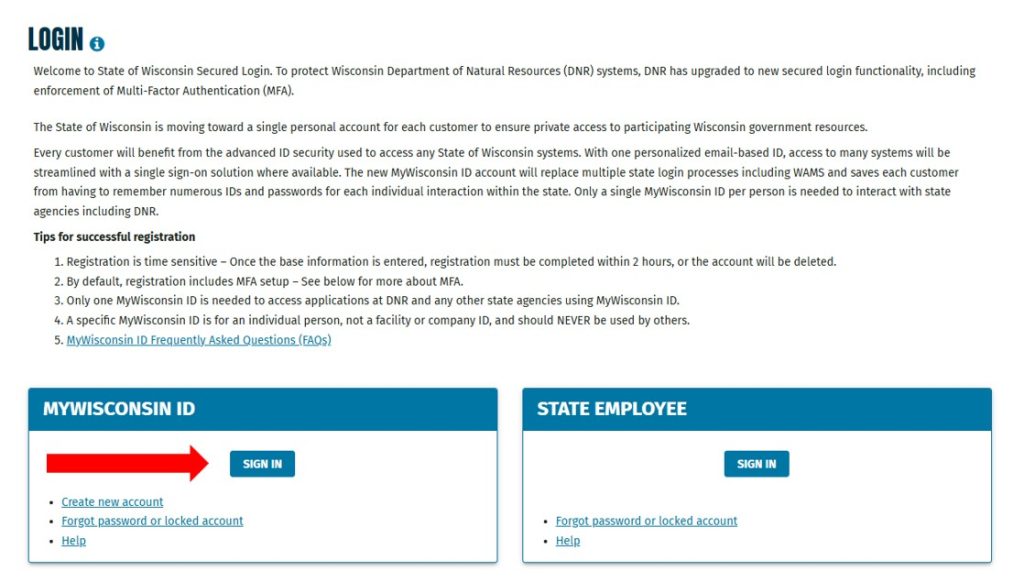
Once WAV staff confirm your profile is complete, you can log into the SWIMS data base using the “Login to the SWIMS database” link above, and then selecting “Continue as New User” on the initial login screen. After your initial login, your sign in screen will look like the image below. You will use the MyWisconsin ID “SIGN IN” button, indicated with a red arrow, to login from this point forward.
Selecting a Monitoring Site
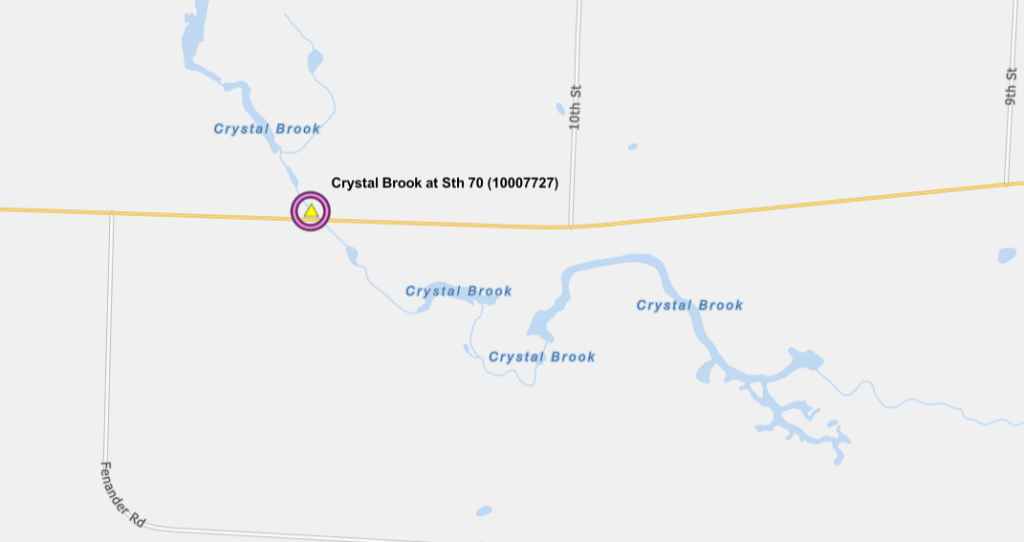
In the SWIMS database, your stream monitoring location is represented by a Station Name and Station ID. This six to eight digit number is tied to a specific GPS location, so that your data can be pinpointed to the specific site you monitor on your stream.
Work with your local WAV Coordinator and WAV Program Staff to choose a stream monitoring site and identify your Station ID number and Station Name. WAV Program Staff may need to create a new Station ID if your stream site has never been monitored.
Entering and Editing Your Data
WAV Baseline Monitoring volunteers enter their stream monitoring data each month into SWIMS. Some volunteers participating in special projects monitoring, such as nutrient sampling, will not need to enter their data.
Watch our 10 minute tutorial video to learn how to enter and edit your data in SWIMS.
Exploring Stream Data
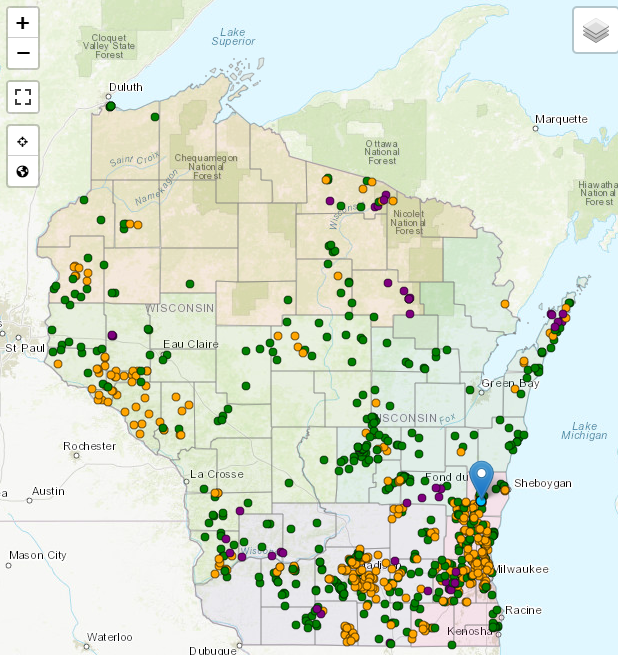
The data in the SWIMS database is linked to other DNR web tools that allow the public to interact with Wisconsin’s water quality data. Stream monitoring data collected by both volunteers and biologists can be accessed from several different tools, including our own WAV Stream Monitoring Data Dashboard.
Additionally, the Wisconsin DNR sends water quality data to the U.S. Environmental Protection Agency, which has additional data exploration tools.
Learn more by visiting our Data page!
Questions or need assistance?
Send an email to WAV Program Staff at wav@extension.wisc.edu.